Guide
Running your first website audit
Create a project, start an audit, and understand what to look at first.
4 min read
Create the project
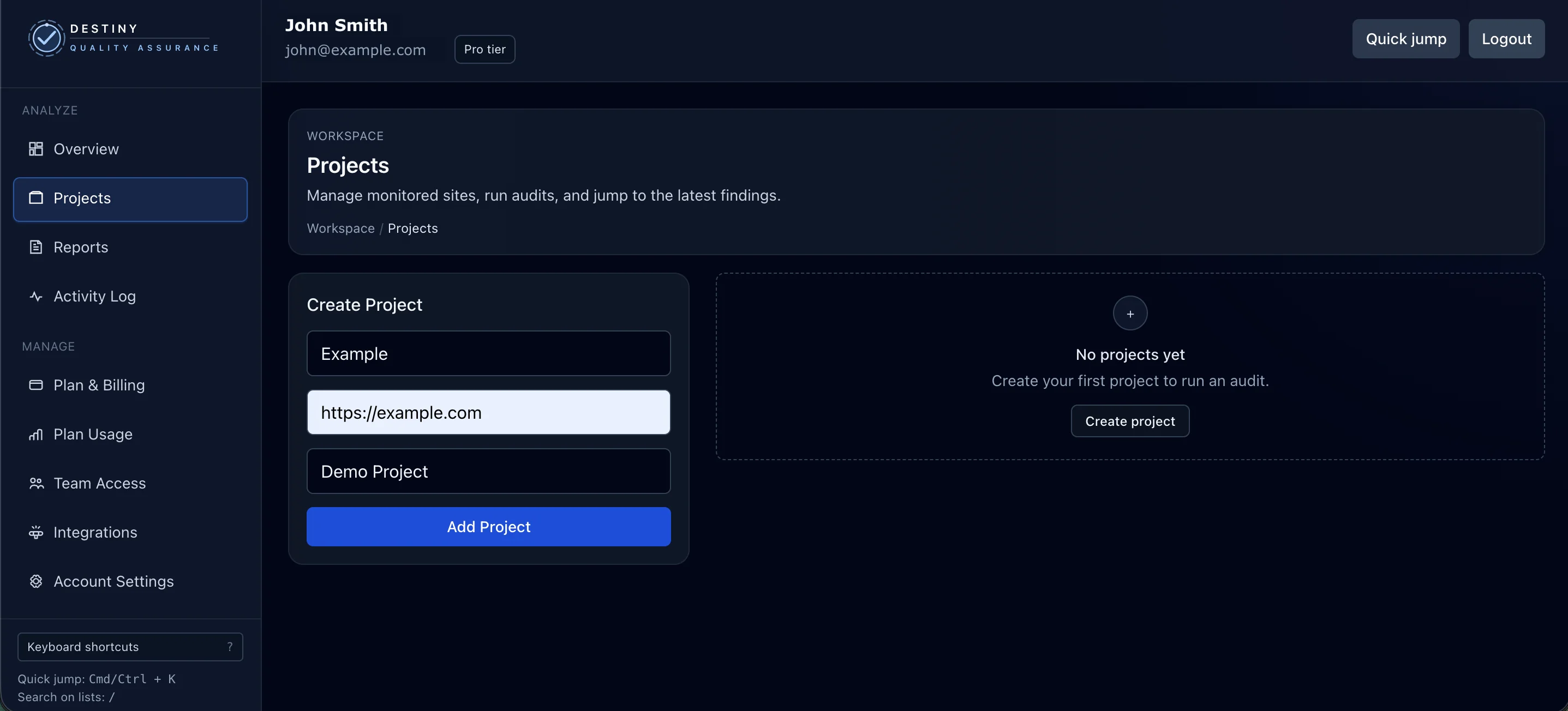
Start by adding the website's base URL. Use the canonical public URL, including https, so Destiny QA crawls the same version your visitors and search engines see. Give the project a clear name so it is easy to find later.
Run the audit
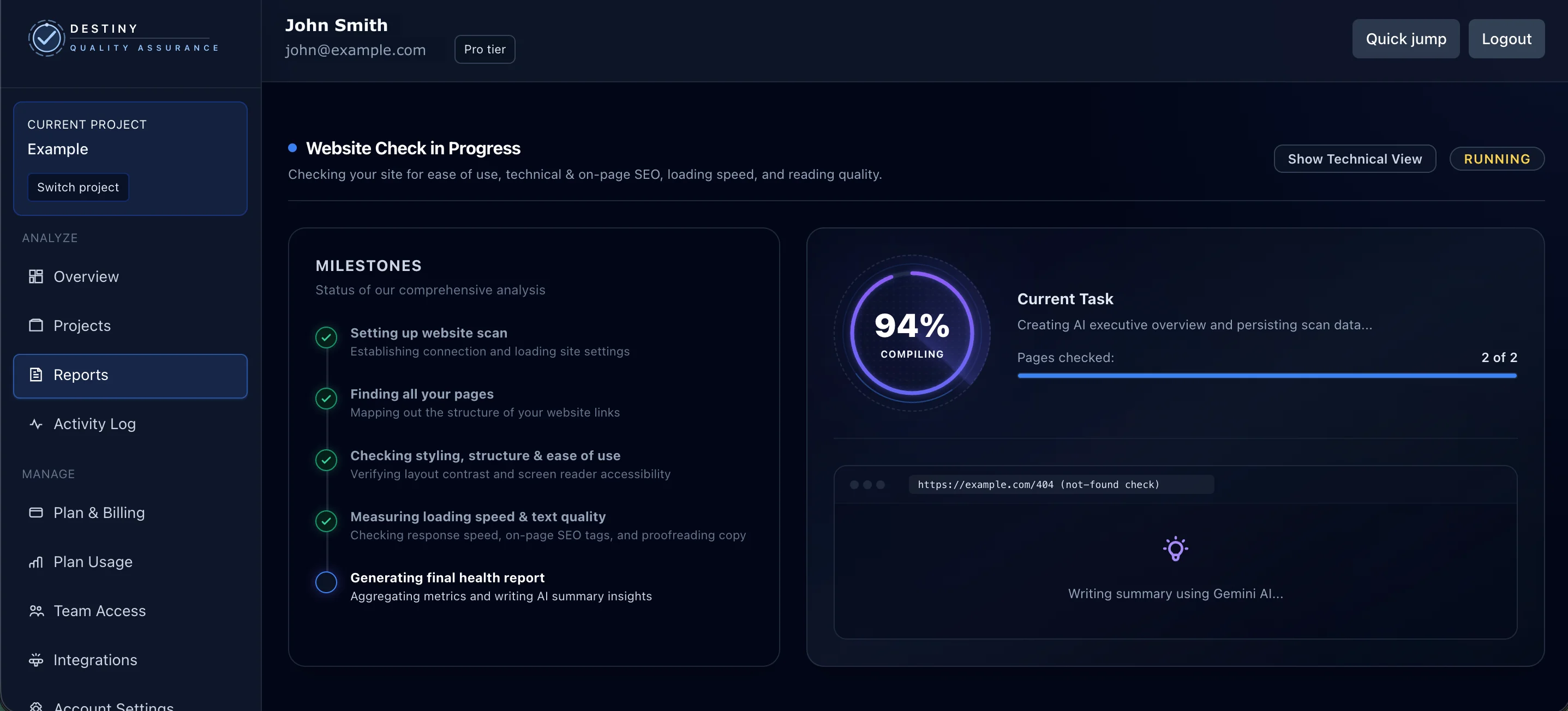
Open the project and start an audit. Destiny QA discovers your pages, then checks each one for accessibility, performance, technical SEO, security, and content quality. This first audit becomes the baseline that every later audit is compared against.
Review the report overview
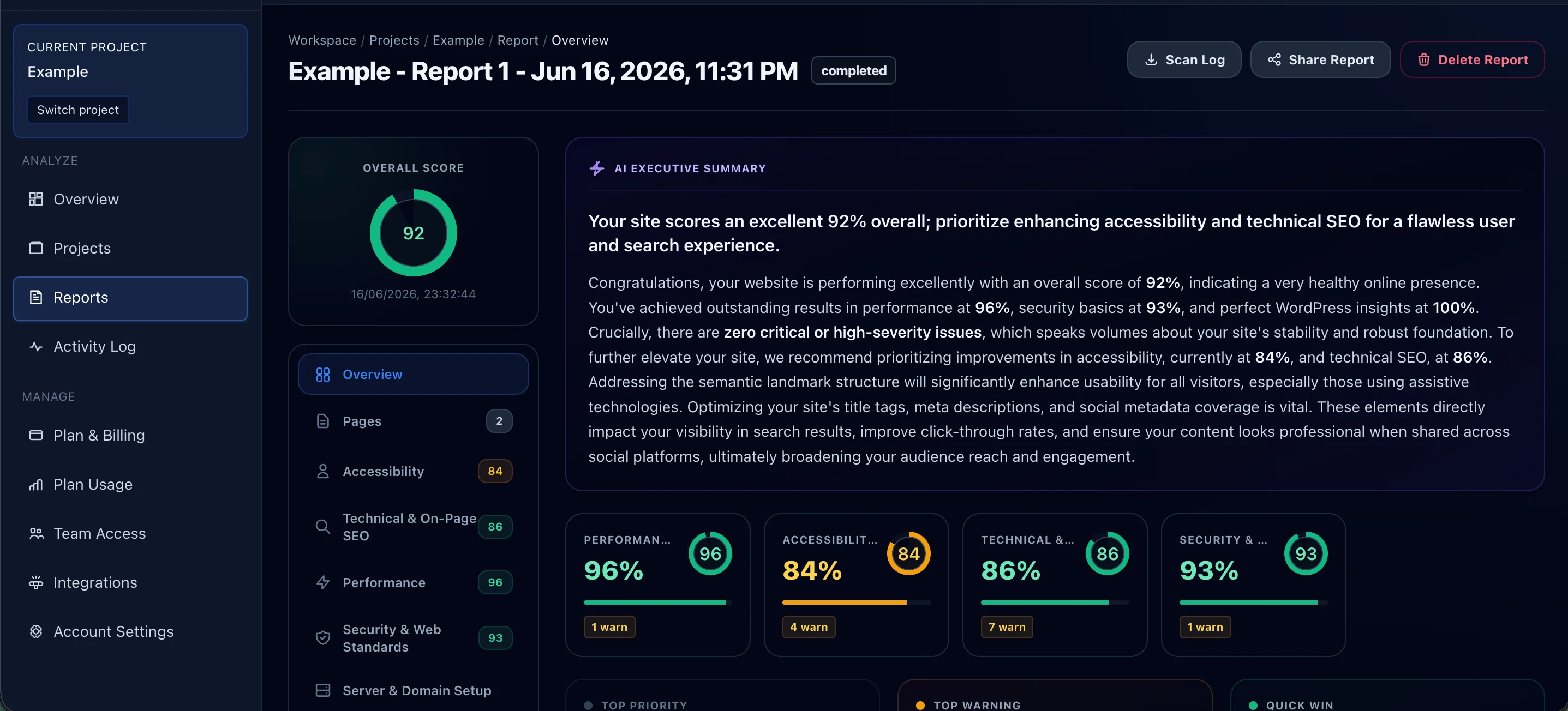
When the audit finishes, start on the overview. The overall score and category breakdown show where the site stands, and the AI executive summary explains the biggest risks and what is worth fixing first.
Open a finding to understand it
Open a category and expand any finding to see the full picture: what the issue is, why it matters, the exact pages affected, and clear, AI-guided steps to fix it. This is where a score turns into something a developer or content editor can act on.
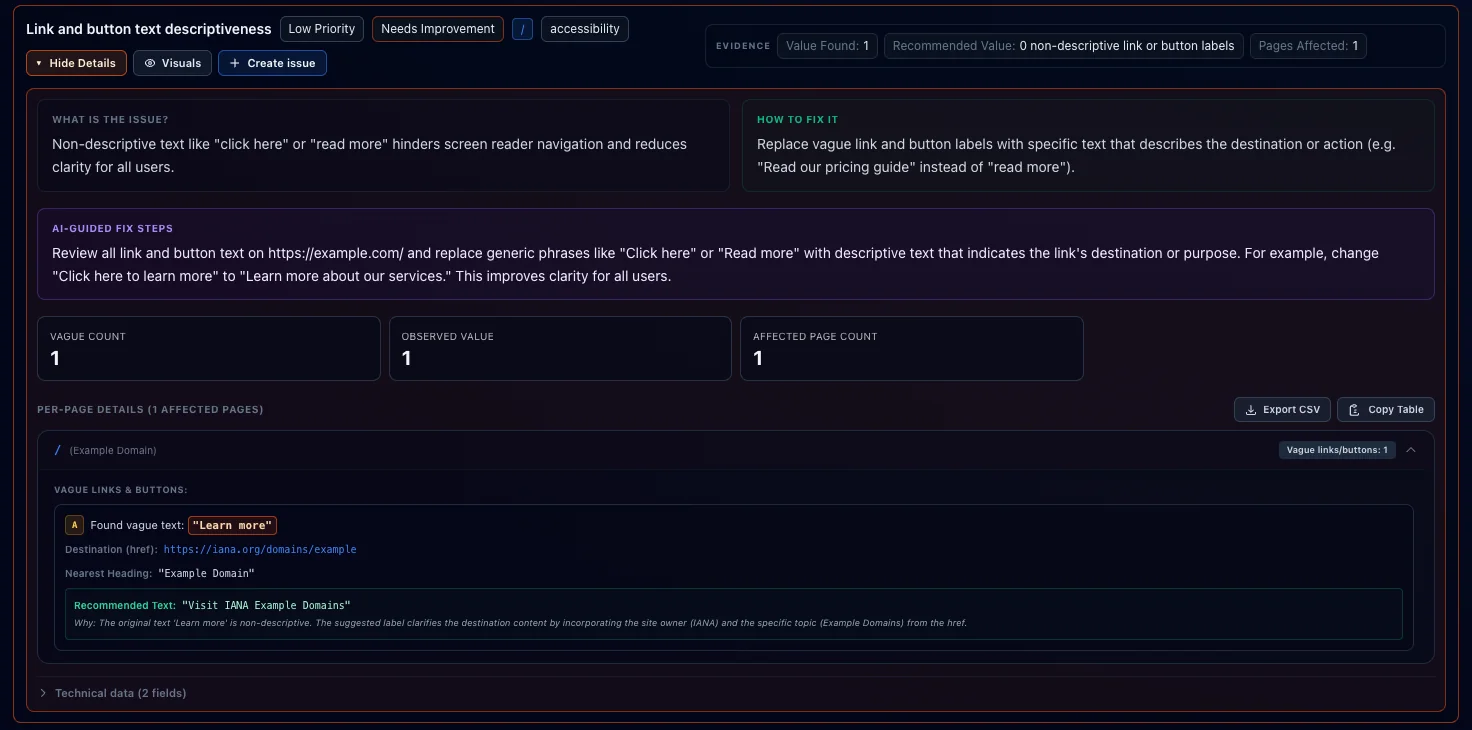
Turn the finding into action
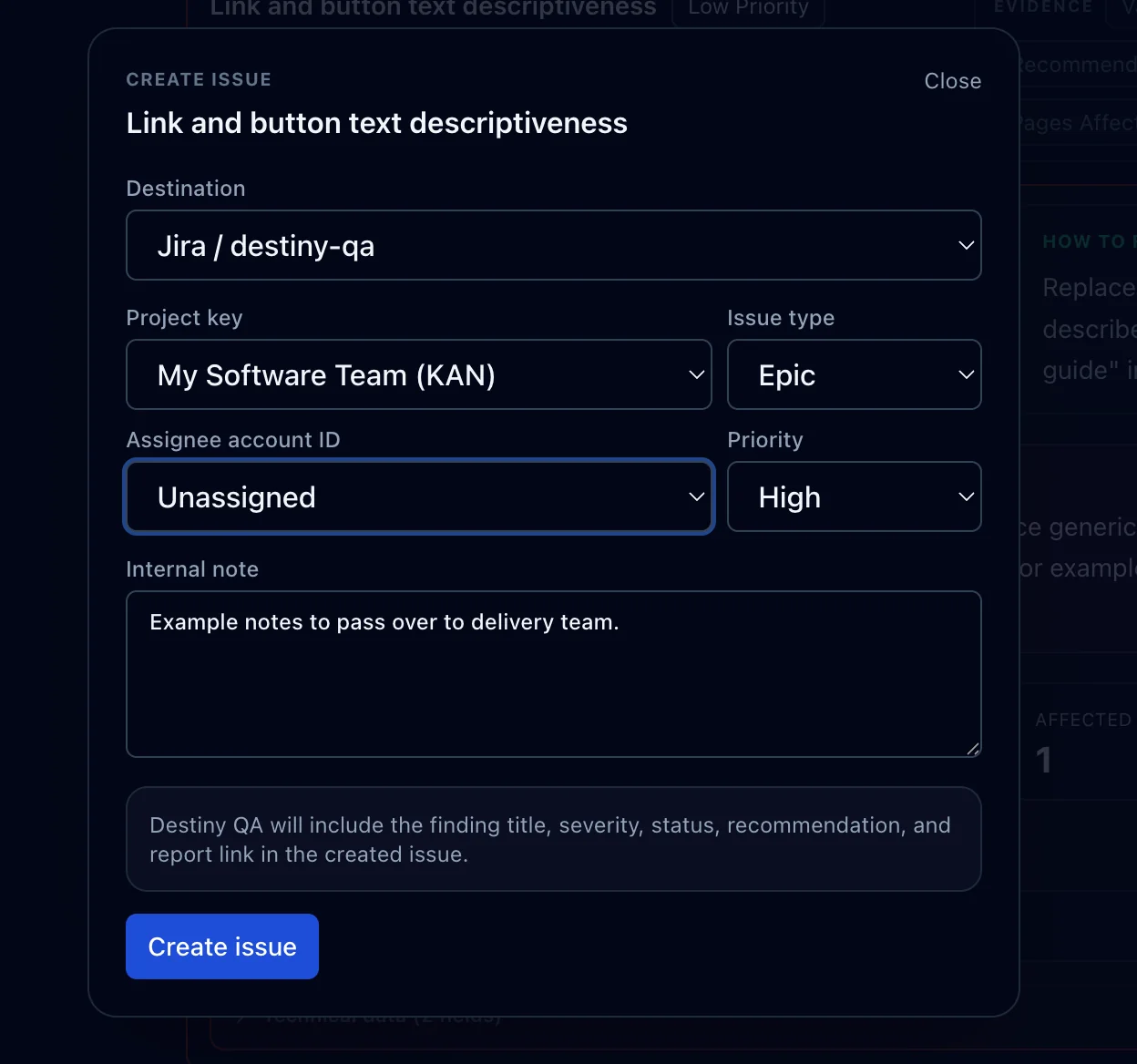
Every finding can move straight into your workflow. Export the affected pages to CSV, copy them as a table into a spreadsheet, or create a ticket in the issue tracker your team already uses, such as Jira, GitHub, or Linear, with the finding details attached.